Every gift on this list does at least one of three things: gives a kid something good to do instead of a screen, is a better first device, or cuts down the ways a child can get hurt online. Each one had to earn its spot.
For anything that connects to the internet, I locked it down with the settings I recommend and checked what a child could still reach. If a child could still get to feeds, ads, strangers or an AI they can talk to, it didn't make the list. I also left out anything built to keep kids hooked, anything that sells a child's data, and cameras or microphones a parent can't control.
Some companies sent me their products for free. That doesn't oblige me to say anything I don't believe: everything on this list is something I honestly recommend and would use for my own family. I also gave some of them to people with no tie to the companies that sent them, and what they found is part of my verdict. Some links pay me a commission.
A first phone or watch
A smartwatch for kids Bark Watch or Apple Watch SE
I'd look at a watch first. It's simple, hard to lose, and there's less to browse. Neither of these watches has a camera, and a small screen makes it harder to mindlessly scroll. For most families, I'd pick the Bark Watch. It's simpler to set up than an Apple Watch: its parental controls are tamper-proof out of the box. You manage it from the Bark app on your phone, so it works whether you have an iPhone or an Android. When my son wore one for a school day, it still had 59% of its battery when he got home.
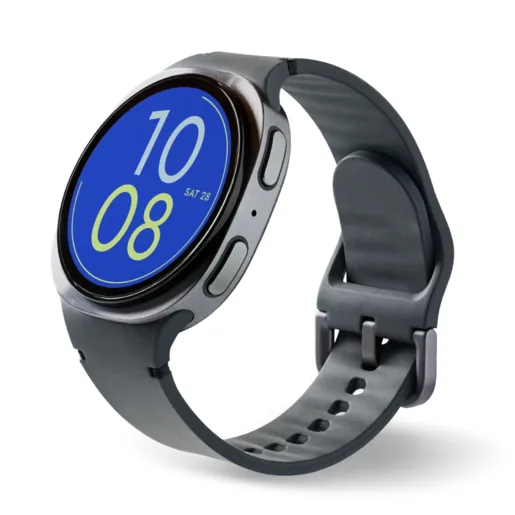

The Bark Watch is $288, plus a Bark plan at $15 a month for its cell service and controls. My code FAMILYITGUY gives you a one-time $30 discount on the watch; it doesn't reduce the monthly fee. Get the Bark Watch. It's an affiliate link: I earn a commission at no extra cost to you, and that supports Family IT Guy's mission to set kids up for success.
If your child would use music or maps, the Apple Watch SE is the other one I'd look at. It has both, and the Bark Watch doesn't. My son uses one that we've set up to allow calls and texts only with a short list of family contacts, and we can see each other's location.
You need an iPhone to set it up, but your child doesn't need their own. Your child needs the cellular model to use it away from Wi-Fi. It starts at $299 at Apple, plus a plan from your carrier. See Apple Watch SE.
A smartphone for kids Bark Phone
If your child needs something only a smartphone can do, like a camera, a web browser or the apps their school or sports team uses, I'd look at the Bark Phone. Its controls are built into the phone, and kids can't bypass them. To change a setting, your child needs a code that only you can get, from your Bark app. Scheduling is its superpower. Bedtime means bedtime, and school mode blocks everything except emergency calls. You can strip it down to a tool instead of a toy, and Bark alerts you when it spots a concerning message. My full review shows the setup I'd use.
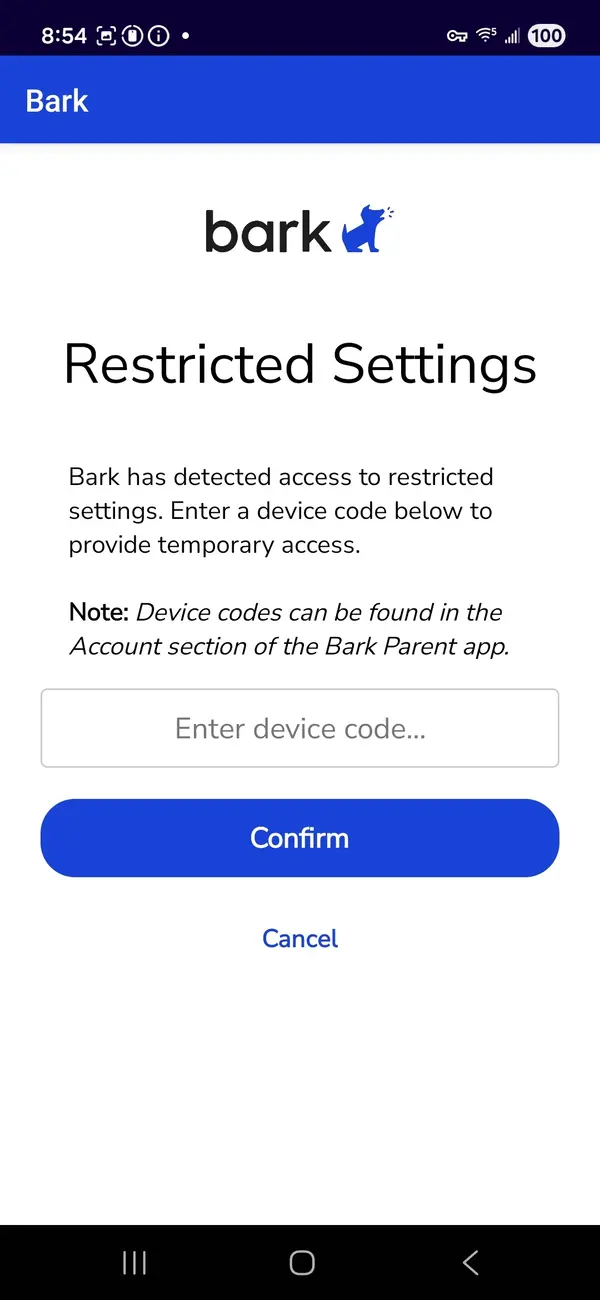
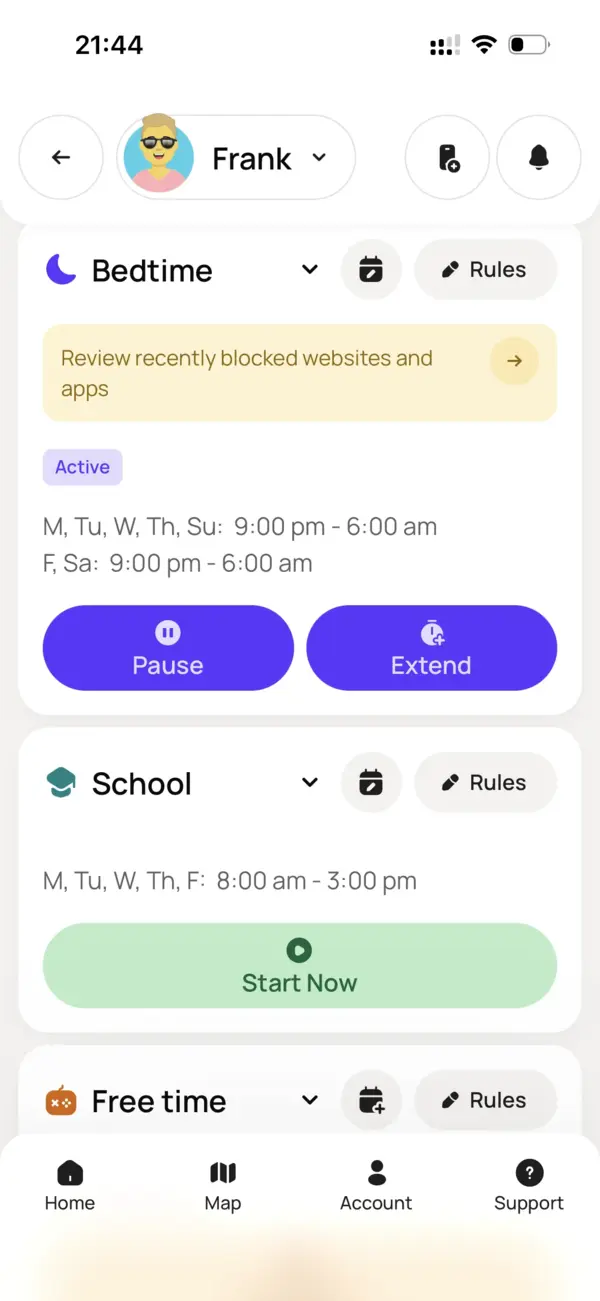
The phone is $360, plus a plan from $29 a month. My link gives you a one-time $30 discount on the purchase price with code FAMILYITGUY; it doesn't reduce the monthly fee. Get the Bark Phone. It's an affiliate link: I earn a commission at no extra cost to you, and that supports Family IT Guy's mission to set kids up for success.
If the gift is an iPhone
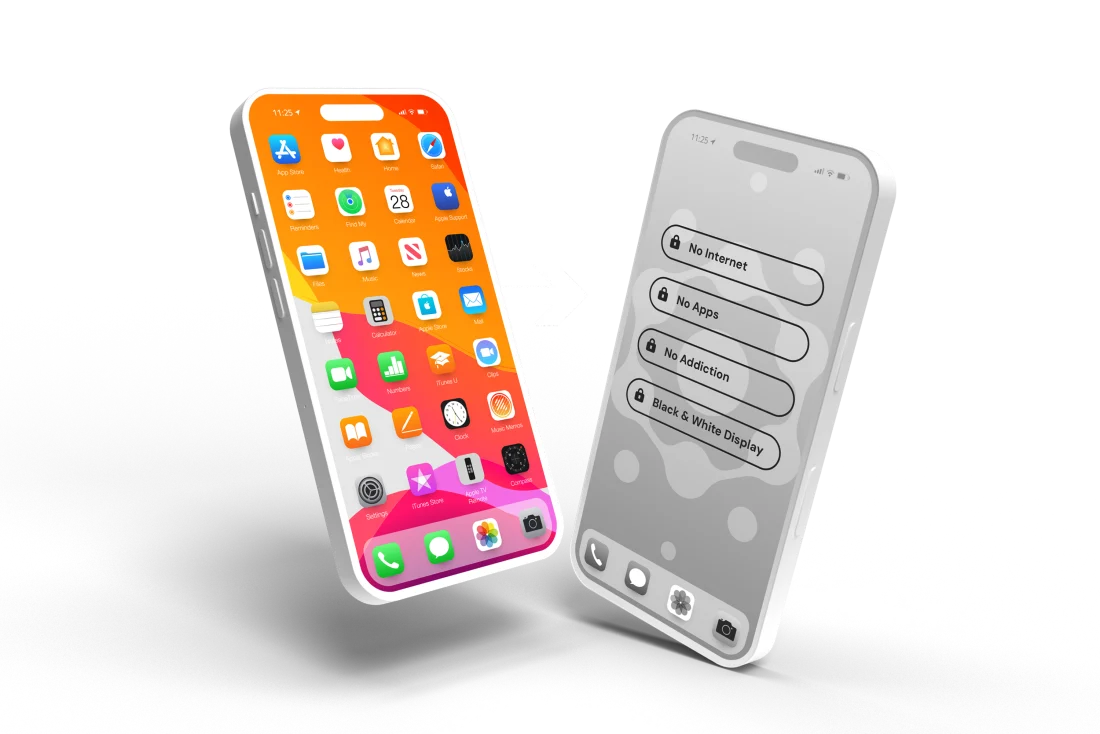
My iPhone Parental Controls Masterclass shows you how to set it up with only what your child needs. If your child is under 13, you can start on your own iPhone before you open the box. The course is $27. See the course and its free preview.
Building, coding and a first computer
An electronics kit Snap Circuits Jr.
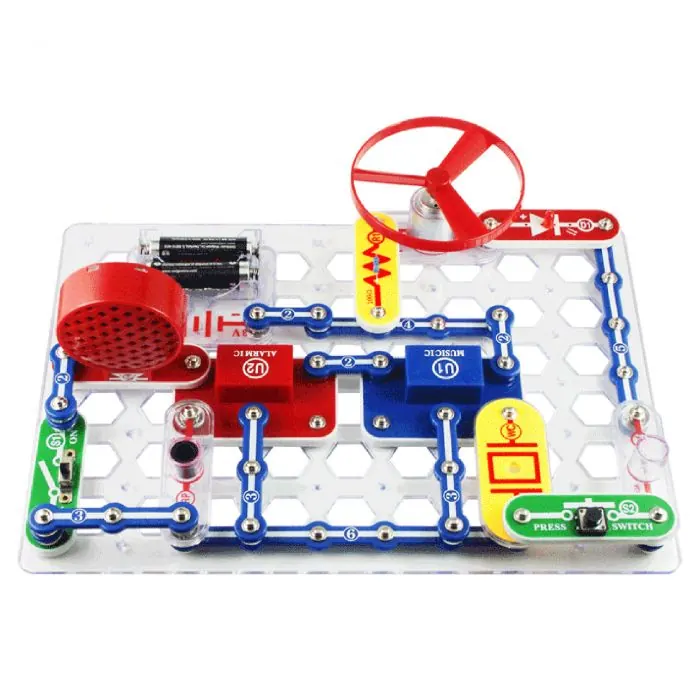
Snap Circuits Jr. has parts that snap together to build electrical circuits. I built the first few projects, and my son built some too. I liked it: the designers made a complex topic like electricity easy to experiment with.
The manual is a lot of reading, so with a younger child I'd build the first few projects together.
Elenco recommends the SC-100 kit for ages 8 and up. It needs two AA batteries, sold separately. Shop Snap Circuits Jr. SC-100 on Amazon. As an Amazon Associate I earn from qualifying purchases.
Coding robots Sphero indi and BOLT+
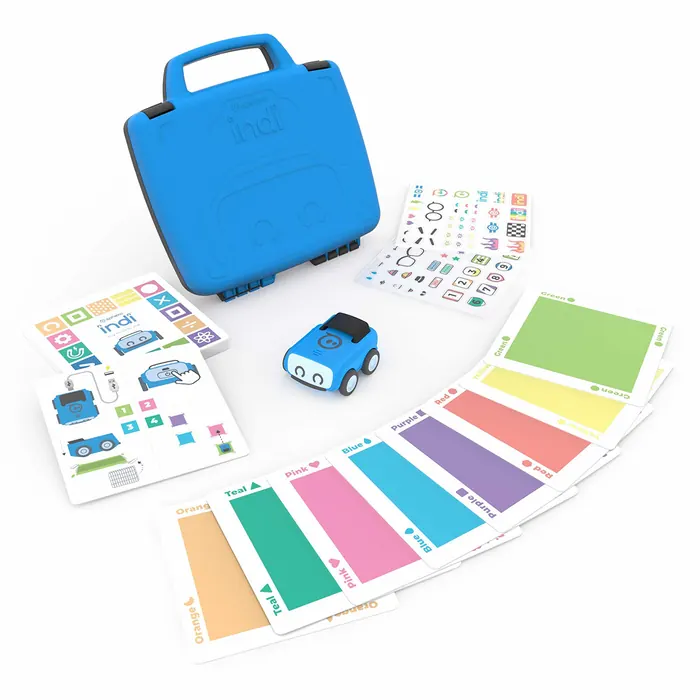
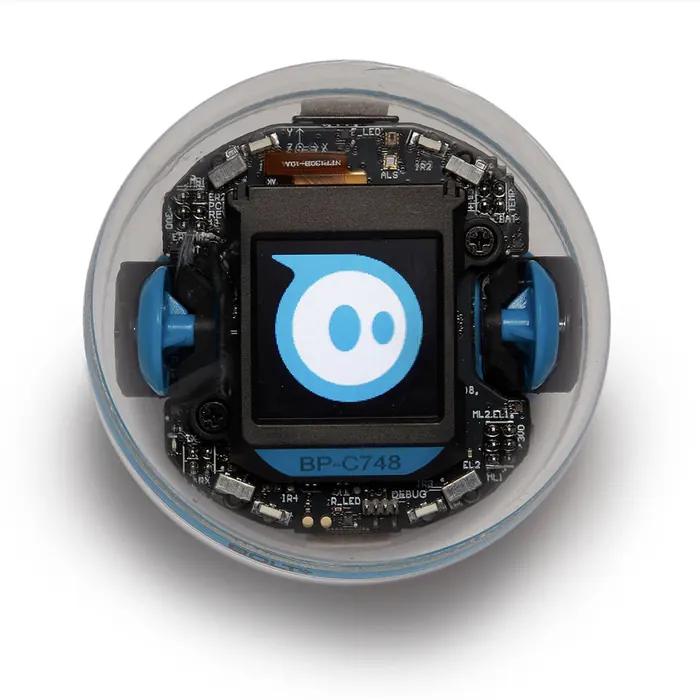
Sphero sent me indi and BOLT+ for free to review. I liked both, for different reasons.
indi was especially easy to use, and I think it's a great option for young kids. You lay out colored tiles to tell the robot where to go. You can use it without a screen; the optional Sphero Edu Jr app lets you change how it responds to colors.
BOLT+ is a bit more complicated and a lot of fun. My son enjoyed it and enjoyed programming it on my iPhone. It needs a compatible phone, tablet or computer running Sphero Edu. I'd choose indi for an easier start, or consider BOLT+ for a child interested in more programming.
The indi Single Student Kit has one robot, 20 color tiles and a charging cable. BOLT+ comes as one robot with its charging base. Both need a USB power source for charging. Shop the single-robot indi kit on Amazon or BOLT+ on Amazon. As an Amazon Associate I earn from qualifying purchases.
BOLT+ is programmed in the Sphero Edu app. Before your child uses it, I'd lock the app's sign-in and AI helper: on its Settings screen, tap the Sphero icon in the bottom right corner three times quickly, switch on those two lockouts and confirm. Your child can still program BOLT+, and once the lockouts are on, your child can't turn them off.
A kids' computer that runs on an old laptop Purple Computer
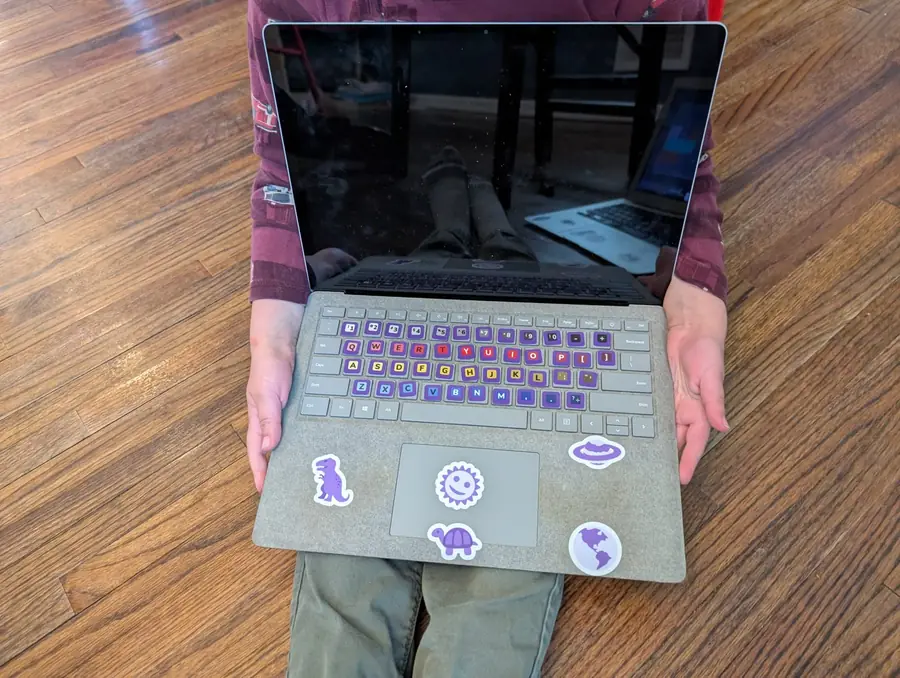
Purple turns an old laptop into a calm computer where your child makes things: drawings, music and simple code. It has no internet and can't connect to anything, so there are no feeds, ads or chats, and nobody can reach your child through it. It's made for ages 3 to 10.
Tavi Nathanson built Purple for his own kids first, and he designed it so they'd put it down on their own, which is the right goal for a kid's computer. When Tavi came on my podcast, what I liked most was the cause and effect: your child tries something and sees right away what their input did. Watch my conversation with Tavi.
It's my pick for a first computer. Purple comes on a USB drive called the Purple Key: $95 once, with free shipping and no subscription, and it works on as many laptops as you like. Most old laptops work; Chromebooks and MacBooks from 2021 on usually don't. No laptop that fits? Purple's site lists used laptops it has tested, at about $50 each. Get Purple. Tavi sent me a Purple Key so I could test it for myself, and I don't earn anything if you buy one.
Listening without a screen
An audio player with no screen Toniebox 2
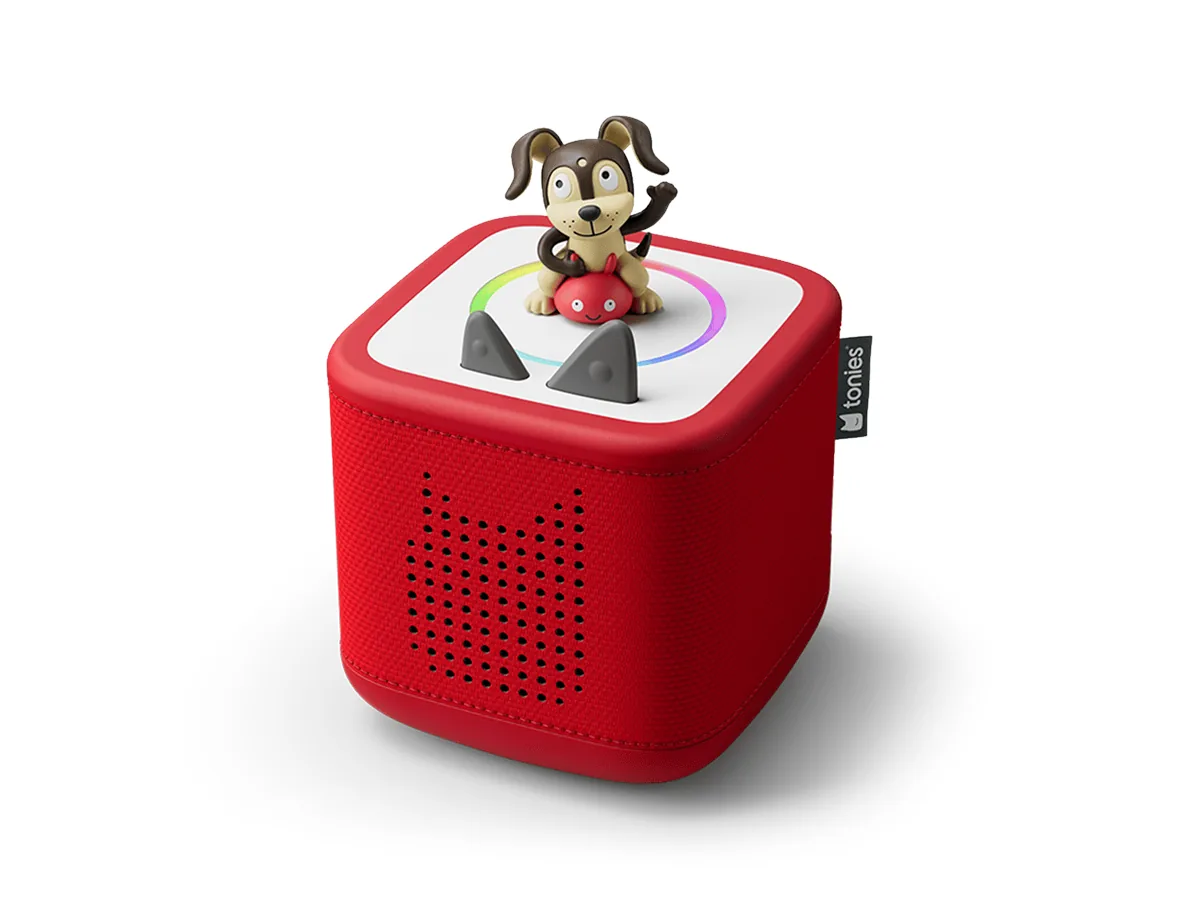
The Toniebox 2 plays stories and songs with no screen. Your child puts a figure called a Tonie on top, and that Tonie's audio plays. It's made for ages 1 and up, for a bedtime routine or for winding down instead of watching TV.
I erased mine and gave it to a relative with young boys, one of them 3. They set it up from scratch in about three steps and were surprised how easy it was. The boys have it figured out, and my relative says it's simple for the 3-year-old to use. When the TV goes off so they can wind down, one of them puts on a Tonie, and at bedtime the 3-year-old puts his on right away. They went more than a week without charging it. My relative calls it a very expensive device, with Tonies at $20 each, and wishes there were more to choose from, but says it's worth it. I'd give one to any kid, from age 1 up.
Two things bothered me. It doesn't come with everything you need to use it: there's no wall charger, and the 8.6-inch cable is too short to reach an outlet from most places you'd put the box. And the app's free stories need something you have to buy: they only play on a Creative Tonie, a blank figure tonies sells separately for $9.99, and the Amazon listing doesn't mention it. My relative didn't expect that either.
Before it plays anything, it needs Wi-Fi, the tonies app, a tonies account and a first update, and each new Tonie needs Wi-Fi the first time it plays. Mine got stuck on that first update over my home Wi-Fi and finished once I connected it to a hotspot from my laptop, so if yours stalls there, try another network, like your phone's hotspot.
The starter set comes with one Tonie, Playtime Puppy, which plays favorite children's songs. Add a USB-C wall charger, and if your child is 3 or older, a longer USB-C cable; tonies says the short one is a safety requirement for younger children. For the app's free stories, add a Creative Tonie, $9.99 from tonies. More Tonies are sold separately. Shop the Toniebox 2 starter set on Amazon. Tonies sent me a Toniebox 2, a Bluey Tonie, their Monopoly game and two game controllers to test. As an Amazon Associate I earn from qualifying purchases.
A camera that isn't a phone
An instant camera instax mini 13
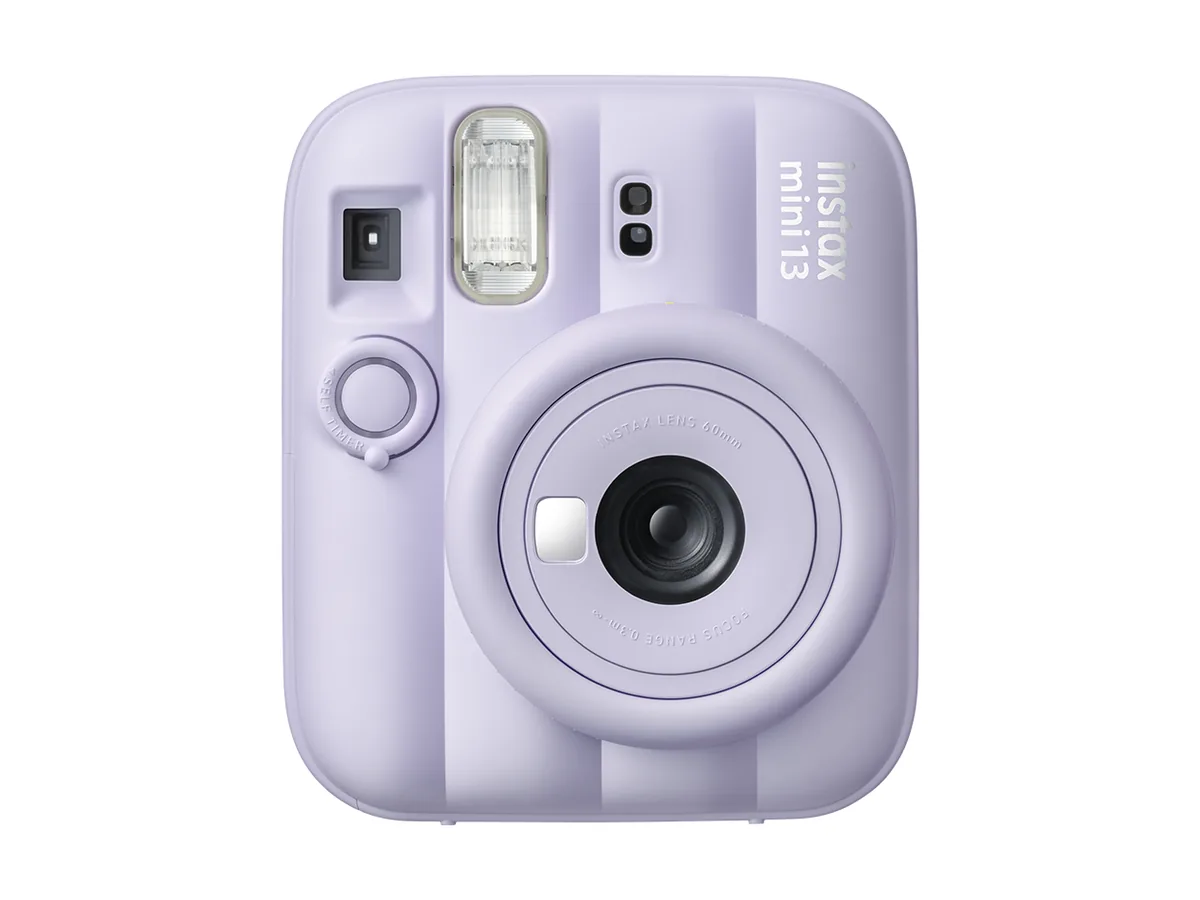
The instax mini 13 lets your child take pictures without a phone. It's an instant camera. Your child twists the lens to turn it on, looks through the viewfinder and presses the button. The picture comes out of the camera and develops in about 90 seconds. It has no screen, and it doesn't connect to a phone or the internet.
I gave mine to a friend for their daughter to use. My friend says it's so easy to use, the battery lasts a long time, it's a lot like the Polaroids of the past, and it's a great way for kids to show their creativity. Their biggest complaint is how fast the film goes and what it costs. You load film 10 pictures at a time, and it's hard to explain "Don't take a picture of that rock!" to a little kid. They'd suggest it for kids 7 and up, unless you don't mind buying a lot of film. I'd give one to a kid 7 or older. In bright light, pictures can come out washed out. Indoors, the flash fires every time; it lights people up close, and the background comes out dark. That's part of its retro Polaroid look.
The camera comes with two AA batteries to start; a new pair lasts about 100 pictures. Shop the instax mini 13 on Amazon. It also needs instax mini film, sold separately. On Amazon the smallest film order is two 20-picture packs. Shop instax mini film on Amazon. Fujifilm sent me an instax mini 13 and two packs of film to test. As an Amazon Associate I earn from qualifying purchases.
Games to play together
A card game Cover Your Assets

We play Cover Your Assets a lot at home and like it. It's easy to play, with some strategy in the decisions you make and enough luck that kids have a chance to beat the adults.
You collect matching cards and build a stack of sets. Other players can try to steal the set on top, so covering a valuable set with another pair protects it.
It's for 2 to 6 players, ages 7 and up, and a game takes 20 to 40 minutes. Paper and a pencil are handy for keeping score. Shop Cover Your Assets on Amazon. As an Amazon Associate I earn from qualifying purchases.
Board games Ticket to Ride and CATAN


Ticket to Ride and CATAN are two board games kids and adults play together. Which one fits depends on how many of you are playing, how old the kids are and how long a game they'll sit through.
In Ticket to Ride, you collect colored train cards and spend them to claim railway routes between cities on a map of North America. You score points for each route you claim and for connecting the cities on the tickets you keep secret. On each turn you do one thing: draw train cards, claim a route or draw more tickets. It's for 2 to 5 players, ages 8 and up, and a game takes 30 to 60 minutes.
In CATAN, you build roads, settlements and cities on an island. On your turn you roll the dice, and every piece of land showing the number you rolled produces wood, brick, wheat, wool or ore for each player with a settlement or city next to it. Then you can trade with the other players for what you're missing and build as much as you can pay for. You earn points by building, and the first player to 10 points wins. It's for 3 or 4 players, ages 10 and up, and the box says a game takes 60 to 90 minutes.
Ticket to Ride is the easier of the two to learn and teach, and it works with just two players. I'd pick it for younger kids, or when only two of you are playing. I'd pick CATAN for three or four players with kids who are ready for trading and a longer game. With a family, it often runs past the 60 to 90 minutes on the box, sometimes two or three hours.
Shop Ticket to Ride on Amazon. Shop CATAN on Amazon. For 5 or 6 players, CATAN also needs its 5-6 Player Expansion, and a game runs 90 minutes or more. Shop the CATAN 5-6 Player Expansion on Amazon. As an Amazon Associate I earn from qualifying purchases.
Calls with friends, no screen
A home phone for kids Tin Can

Tin Can lets your child call friends and family without a smartphone. It's a corded phone with a keypad, and it has no screen, apps, texting or games. It can only call the numbers you approve in the parents' app, and only those numbers can call it.
When I dialed an unapproved number from the Tin Can, a recorded message from Tin Can said it wasn't available. When a number I hadn't approved called the Tin Can, the caller heard nothing, not even a ring, and the call just hung up.
I've used it, and it works fine.
Setup was pretty smooth. I scanned the QR code in the box, made an account, and the app paired with the phone over Bluetooth and put it on my Wi-Fi. I added contacts straight from my phone's contacts and approved each one. The app doesn't tell you when the phone is ready to use, and mine didn't connect calls at first. If yours doesn't work right away, wait up to 30 minutes.
The speed dial is really smart: four colored buttons each call one person, and you can give any approved contact a one- or two-digit speed dial. The app also prints a list of your child's contacts and their numbers, which I think is a great idea. I like that it has a speakerphone. Nothing on the phone shows that a voicemail is waiting, so you press the voicemail button to find out, and voicemails only play on the phone, not in the app.
In the app, setting calling hours was very easy, and you can set different hours for each day. You can't set a limit on total talk time, though. You can't change the ringtone, and volume is set on the phone, not in the app.
911 is always on, and I wish it were optional: I'd rather choose whether my kids can call 911. Before the phone makes any call, you give Tin Can your home address for 911. It can't call 911 when your power or internet is out.
Tin Can says it doesn't record calls. It does keep voicemails, and the app shows you a call log with who called and for how long.
It plugs into the wall, and the power adapter is in the box. It only connects to 2.4 GHz Wi-Fi, the kind many printers and smart speakers use, so it can't join a network set to 5 GHz only. Put it near your Wi-Fi router.
Calls to other Tin Cans are free once you and the other family approve each other in the app. To call or take calls from regular phone numbers, like your cell or a grandparent's, you need the Party Line plan, which is $9.99 a month after a free first month, or $100 a year. The phone is $100 from Tin Can's store, or $95 each for two. Shop Tin Can at tincan.kids. Tin Can sent me one to test. I earn a commission if you buy through my link.
Alarm clocks
Sunrise alarm clocks JALL and Lumie Bodyclock Glow 150

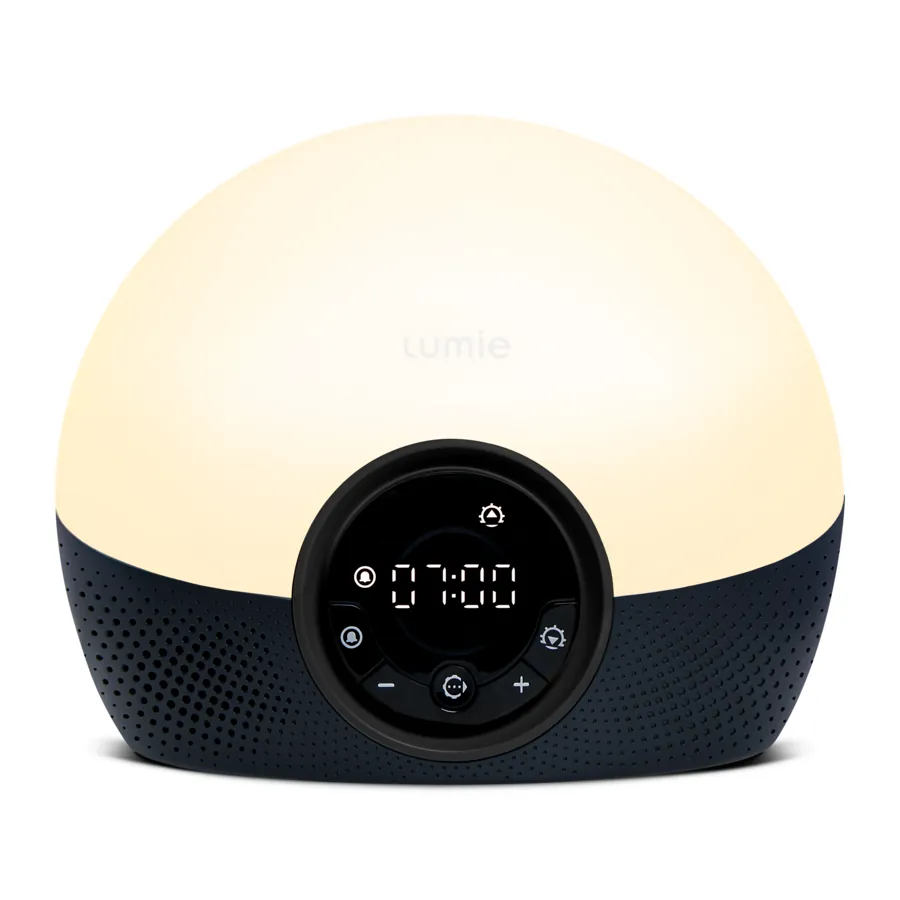
A separate alarm clock gives you an option besides keeping a phone by the bed. I like both of these sunrise clocks.
I bought the JALL for my son, and it has worked well. He unplugs it on weekends, and it remembers the time. I like that its light comes on gradually and can be dim at night. It also plays music over Bluetooth.
I use the Lumie Bodyclock Glow 150 and like how dim its light can get at night. In the morning, the gradually increasing brightness and its sounds help me wake up without startling me.
Shop that JALL clock on Amazon. Shop the Lumie Bodyclock Glow 150 on Amazon. As an Amazon Associate I earn from qualifying purchases.
Privacy for the whole family
Private email and a password manager Proton Mail and Proton Pass
Proton is my privacy pick for families. Your email, files, photos and passwords are encrypted with keys only you control, so nobody can read them but you, not even Proton. It's easy to use, and anybody can use it. Proton doesn't show ads, track you, build a profile of you or train AI on your messages.
It's for kids too. A child 13 or older can have their own private email address, a place to keep and share homework files, and their own password manager. For a younger child, you can reserve a Proton email address now with a donation of $1 or more to the Proton Foundation, and they can start using it when they're ready. Reserve your child's address.
I use Proton for my own email, calendar, files, photos and passwords. Proton offered me free access, and I still pay for my own subscription. It's a critical set of services for me, and paying for it keeps my use and reviews of it unbiased.
Proton Family covers up to six people. Each person gets their own private account: an email address, a password manager, a calendar, and space for files and photos. They also get an app for the extra login codes some accounts ask for when you sign in, and a VPN, which keeps your internet company from seeing which sites you visit. You split 3 TB of storage between everyone, and nobody in the family can see anyone else's email or files unless they share them. It's $287.88 a year. See Proton Family. For one person, Proton Unlimited includes Mail, Pass and Proton's other apps for $119.88 a year. See Proton Unlimited.
A private search engine Kagi Search
Kagi is a search engine that's private by design, paid for by the people who use it instead of by ads. It works great. I've been using it for a long time, and I recommend it. It's for the grown-ups at home; I wouldn't give a child one of its kids accounts yet.
It's $10 a month for one person, $14 for two and $20 for a family of up to six, with unlimited searches. See Kagi's plans.
CERTAIN CONTENT THAT APPEARS ON THIS SITE COMES FROM AMAZON. THIS CONTENT IS PROVIDED 'AS IS' AND IS SUBJECT TO CHANGE OR REMOVAL AT ANY TIME.