Bark Phone Review
Summary of my review: The Bark Phone delivers on its claims. The controls actually work and kids can't bypass them. It's a good product that solves real problems - but you should review and consider the specific configuration changes I recommend below before giving a Bark phone to your child.
Disclosure
Bark sent me this phone for free so I could review it.
I review products based on the Family IT Guy principles - for example - including Truth Over Comfort, Data and Power Are Hazardous Materials, and Reality Over Authority.
This page contains affiliate links. If you buy through my link, I earn a commission at no extra cost to you. Bark did not pay for this review and did not see it before publication.
New to choosing devices for kids? Read my complete framework on technology approaches →
What Bark Phone Claims to Be
Bark markets their phone as "The Safest Phone for Kids" - a smartphone with easy-to-use controls that can be set up to be safe for kids of any age.
The hardware: It looks like a normal smartphone - not a "kids' phone" with obvious parenting features. Your child carries what looks like a regular phone.
What Bark promises:
- AI-powered safety alerts that monitor over thirty platforms (social media, messaging, email)
- Monitoring without full surveillance - parents get notified about concerning content, not everything
- Customizable from basic talk-and-text all the way up to a full smartphone as your child matures
- Tamper-proof controls that kids cannot bypass like they can with other solutions
- Twenty-four-seven GPS location tracking, contact approvals, app blocking, web filtering, and screen time limits
That's the marketing. Here's what you should consider before making a purchase decision and what I found when I tested it.
Why Bark Is Different
When it comes to giving kids smartphones, you have three options:
The tradeoff: With built-in controls, your family's data flows through the company's servers for monitoring and filtering. If you're technical and can set up your own DNS filters and surveillance, that's more private but more complex. If you need simplicity and strong controls, built-in protection makes sense.
What Bark Does Great
Setup was straightforward. No technical expertise required. Age-appropriate templates are pre-installed out of the box. Multi-child management with individual settings per child works smoothly. Bark's chatbot support was helpful when I had questions, and they have a phone number you can call for help that's open from 8am-10pm Eastern time.
Scheduling and filtering - This is Bark's superpower.
If you want bedtime to actually mean bedtime - like no TikTok at 2am - Bark's scheduling system works. School mode blocks everything except emergency calls. Weekend mode can be configured to allow games. It's granular and it actually enforces the rules as you would expect it to. You can strip this phone down to a tool instead of a toy.
Monitoring and alerts - Bark is able to monitor encrypted text message apps like WhatsApp. When I tested it by sending messages about depression, it flagged them within thirty minutes and sent me a push notification. This is not real-time, but it does work. You don't see the full conversation - you only see the specific messages that the AI thinks are risky. Bark monitors over thirty apps this way.
Contact control is parent-managed. Each time someone tries to text or call your child for the first time, you get a push notification to the Bark parent app asking for approval. Your child cannot receive that text or phone call until you approve the contact. You can also revoke contacts remotely in real-time through the parent app. Bark gives you true parental authority over what goes on the phone.
Control features - You can, and should, completely disable the camera system-wide - this is a very important and often overlooked feature. You can remotely lock down the phone. Screen time limits actually enforce. Real-time GPS location works with location alerts to tell you when your child arrives at or leaves specific places that you define, and you get location history so you can see where they have been throughout the day.
Bark also sends occasional emails with activity summaries, so you don't have to manually check the app all the time to stay informed.
App management - You can see recently installed apps with install dates. Set app installs to approval-only mode so nothing gets installed without your permission. You can also view a complete list of all installed apps.
Internet filtering visibility - The app shows how many sites were analyzed over the last seven days with a chart of allowed versus blocked, broken down by category. You see a list of recently blocked sites with controls to unblock each one if needed.
Top Contacts
The parent app shows you who your child communicates with most - how many messages and calls they exchange with each contact over the last seven days. This helps you understand their social patterns without reading every message.

Emotional Analysis
Bark analyzes the tone of your child's text conversations - how many positive messages versus negative messages. This gives you a sense of their emotional state without invading every conversation.

Settings Protection
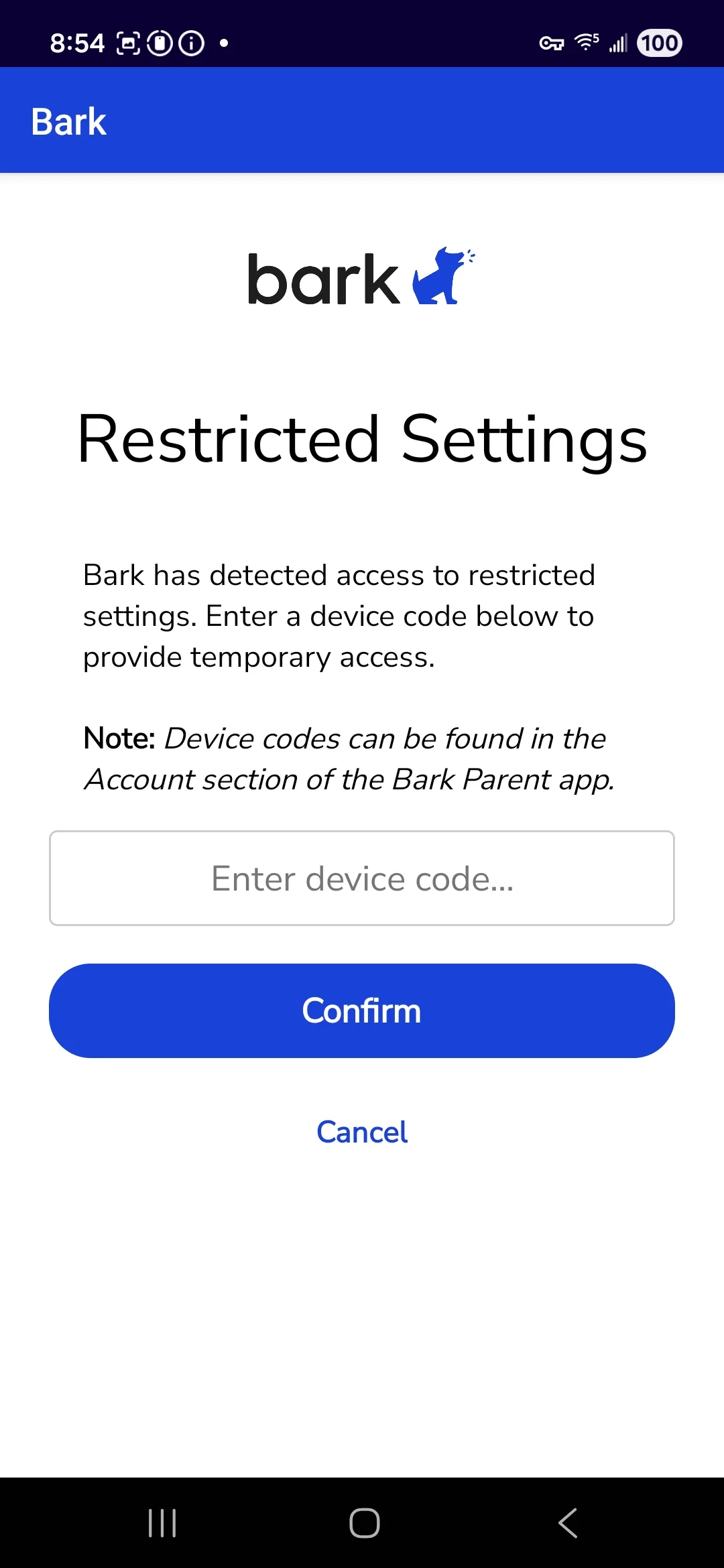
If your child tries to open the phone's Settings app and change anything, they're prompted for a code. That code can only be generated on the parent's Bark app. No code, no changes.
Overall, the Bark phone is a solid product that gives parents genuine visibility and control.
What Bark Doesn't Do
Bark does not give you full surveillance. There's no call history. No internet browsing history. And no photo library access. You can't read all your child's texts - just what it flags.
This is by design. Bark is attempting to balance remote monitoring with privacy.
If you need to investigate existing behavior problems or you want to see every text without manually checking your child's phone, Bark is not the right tool for that.
I'm not suggesting whether you should or should not desire full remote surveillance capabilities - that is up to each family. I'm just highlighting where Bark lands in the spectrum of visibility into your child's phone.
Important detail: When someone texts your child from an unapproved number for the first time, that original message is lost - not queued. Once you approve the contact, future messages come through, but the first one is gone. Same with calls - blocked until you approve.
Also: WhatsApp monitoring alerts took 30 minutes, they were not delivered in real-time the way that regular text message alerts were.
Privacy & Data Security
Here's how Bark's monitoring system works: When your child sends messages or uses apps or browses websites, that data flows through Bark's servers. Bark's AI analyzes it for concerning content - things like self-harm, sexual content, drug references, and bullying. If it flags something, you get an alert. That data is stored on Bark's servers for up to sixty days.
This privacy trade-off is not unique to Bark. Most internet monitoring systems for children work this way - in order to alert you about what your child is doing, the company has to see it first.
The tradeoff: If Bark is ever breached, it's not credit card numbers at risk. It's your child's conversations and location history. Some families are comfortable with that. Others aren't. It's your call.
Tell your child they're being monitored. I recommend telling your child that their device is monitored. Don't make it a secret. Explain what's being monitored and why.
This is really valuable real-world education for their future. Because the reality is that the internet is a public place and every internet device is being watched - maybe by you through Bark, and otherwise by corporations, advertisers, hackers, social media platforms, and governments. Everything you say and do online should be considered public and permanent.
Teaching your child this now, while they're young, prepares them for the reality they will face for the rest of their life. It's one of the most important lessons about the internet that you can give them.
Who This Phone Is Right For
Would I use the Bark Phone for my son? If he needed a smartphone and I wanted to monitor his activity, yes I would - but only with the setup changes I recommend below.
Bark phones are good for:
- Kids getting their first smartphone
- Families who want monitoring without full surveillance
- Parents who need powerful controls without technical complexity
Bark phones are not the right choice for:
- Families who don't want to manually check their child's phone if they're concerned about a problem and would rather have secret, remote visibility into the full contents of messages and photos
- Anyone uncomfortable with data flowing through third-party servers - if this is you, consider a phone that does not have any internet connectivity or "Option 1: Lock Down a Regular Phone" that was discussed above - a phone that does not have any remote monitoring capabilities
The Verdict
The Bark Phone delivers on its claims - the controls actually work and kids can't bypass them. It's a good product that solves real problems if the features and trade-offs match your desires and your family values.
If your child needs a smartphone with genuine parental control, Bark is worth considering - but only with the configuration changes I recommend below.
Setup Guide
The Bark phone does require some additional manual configuration before it is handed over to a child, beyond what can be done in the Bark app itself and beyond what the Bark setup guide tells you to do after you unbox the phone.
Some of the default Bark phone settings are not what I would use for my son, and you should know about them so you can decide what makes sense for your family. None of these are hard to change, but you need to know to look for them.
Configure Bark Parent App
👇 Tap each setting to see configuration steps:
1.1 Install Bark Parents App
Better notifications than web app
Install the Bark Parents App on your phone (not just the web app). The mobile app is better at push notifications, which makes alerts more useful.
Steps:
- On your smartphone, go to App Store (iOS) or Google Play Store (Android)
- Search for "Bark Parental Controls"
- Install the app
- Log in with your Bark account credentials

1.2 Review Default Rules
Check AI chatbots and advertising settings
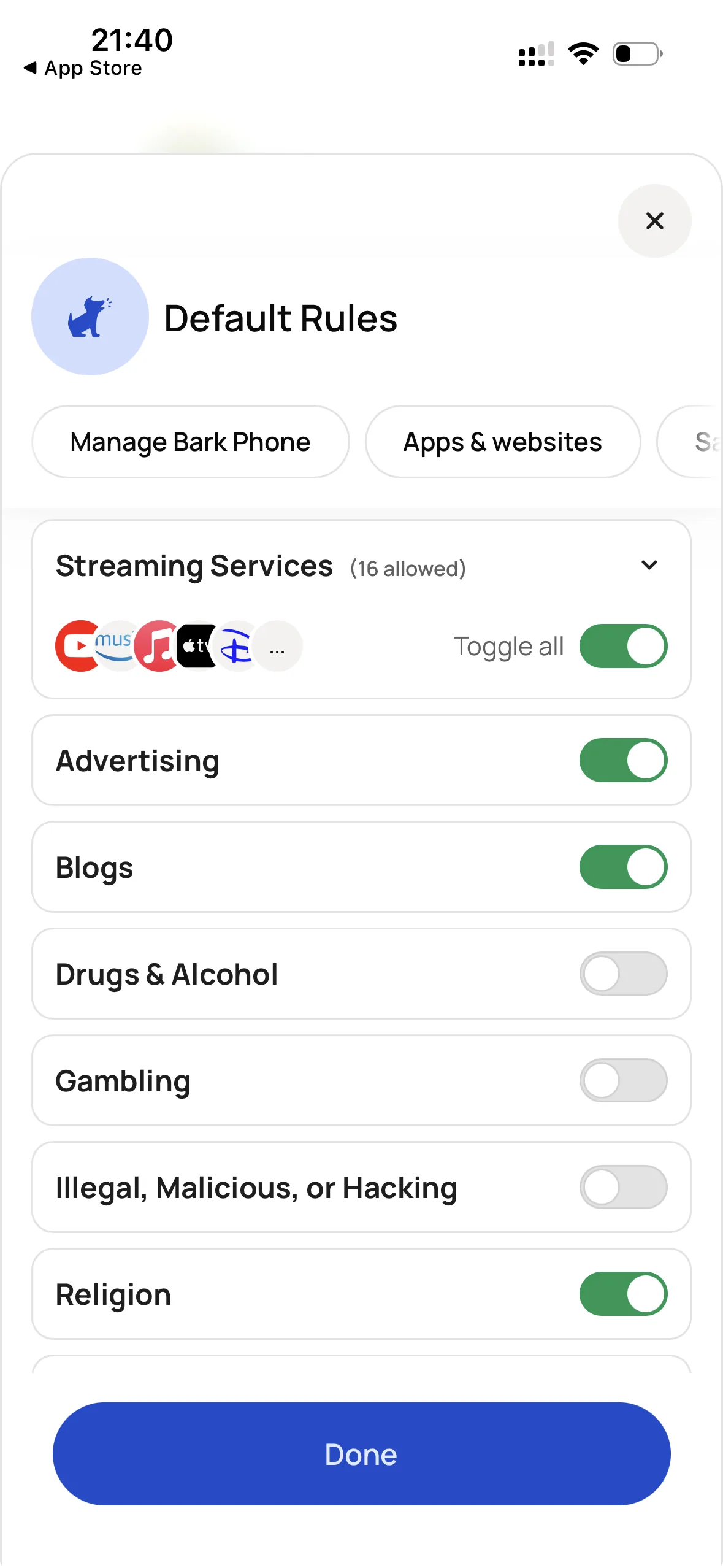
The Bark phone comes with age-based default rules. Some settings may not match what you want for your child.
Critical settings to check:
- AI chatbots - May be enabled for some age profiles. Consider disabling.
- Advertising category - Enabled by default. Should be blocked.
- Social media - Review which platforms are allowed
- Streaming services - YouTube and Spotify allowed by default (both have inappropriate content)
Steps:
- Open Bark Parents App
- Select your child's profile
- Go to Rules
- Review each category
- Adjust settings based on your family's needs

1.3 Configure Schedule Rules
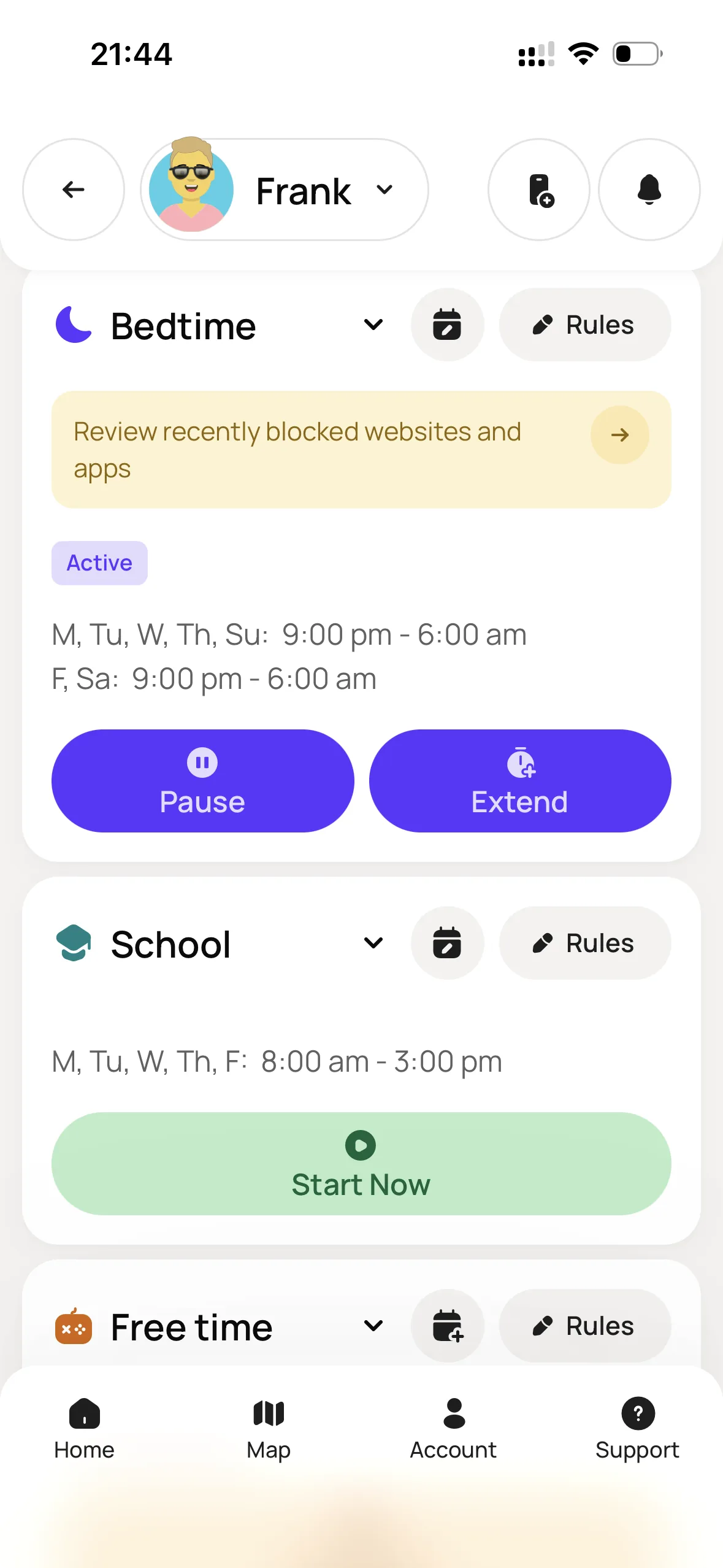
Set school, bedtime, and free time limits
Different times require different rules. Bark makes this easy.
Three schedule types:
School Time (example: Mon-Fri 8am-3pm)
- Block most apps and entertainment
- Allow educational apps if needed
- Block social media, games, streaming
Bedtime (example: 8pm-7am)
- Block all apps except phone for emergency contacts
- Phone should never wake your child
Free Time (after school, weekends)
- More permissive but still age-appropriate
- Control which apps are allowed and for how long
Steps:
- Open Bark Parents App
- Select your child's profile
- Go to each Schedule's Rules
- Create rules for each time period
- Set which apps/categories are allowed during each
1.4 Disable Camera
Prevents sextortion and social media pressure
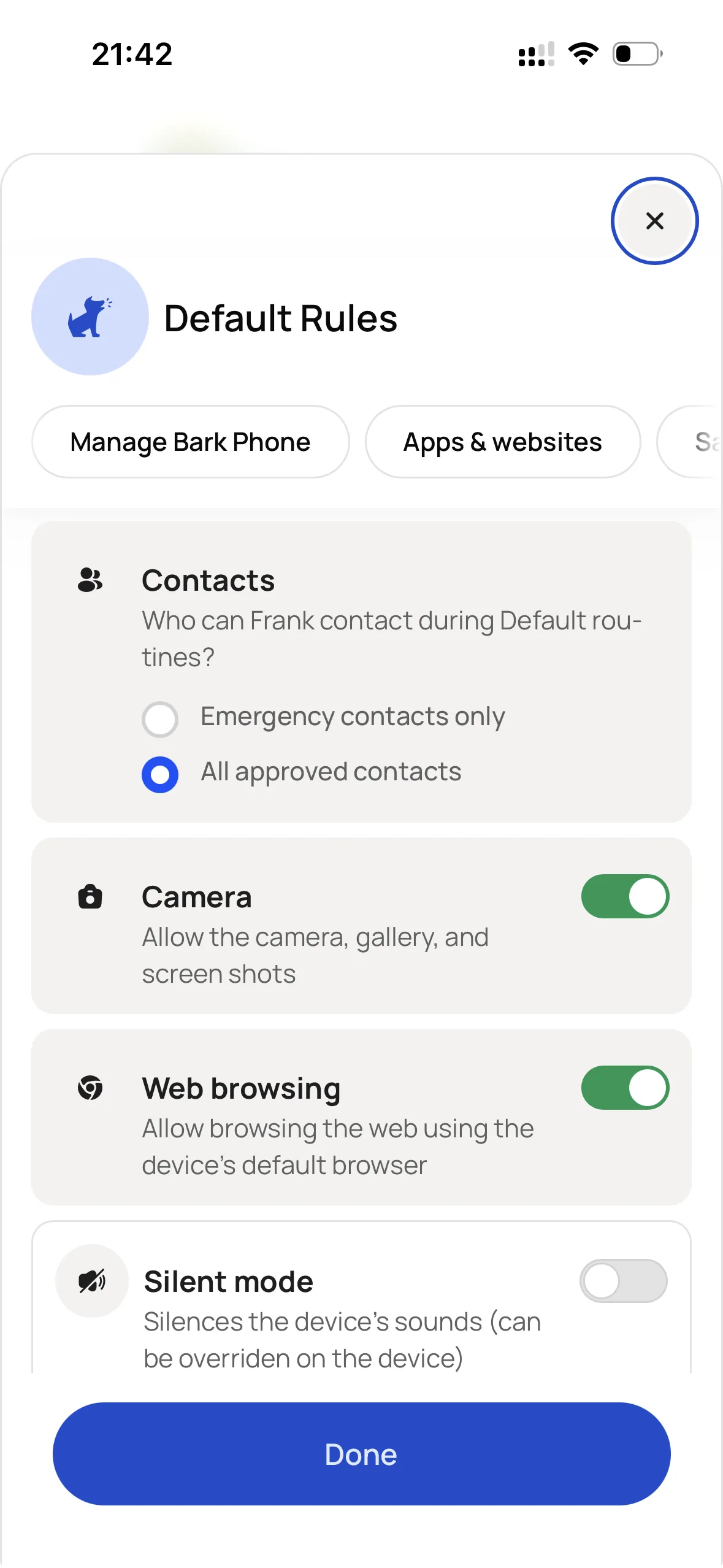
Internet-connected cameras are one of the most dangerous features on a smartphone. Predators coerce children into sending explicit photos (sextortion). Camera access drives social media addiction and appearance comparison.
Steps:
- Open Bark Parents App
- Select your child's profile
- Go to Manage Bark Phone
- Toggle Camera to Disabled
1.5 Configure Browsers
Remove Samsung Internet, keep Chrome if needed
The phone comes with two browsers enabled: Chrome and Samsung Internet. This is confusing and creates bypass opportunities.
For most kids: Disable both browsers completely. If your child needs web access for school, use Chrome only.
The Samsung Internet issue: It can't be fully uninstalled. You must disable it through the Bark Parents app.
Option A - Disable web browsing (recommended for most kids):
- Open Bark Parents App
- Select your child's profile
- Go to Apps & internet access
- Tap on Rules
- Find Web browsing and disable it
Option B - Allow Chrome only (if child needs web browsing):
- Open Bark Parents App
- Select your child's profile
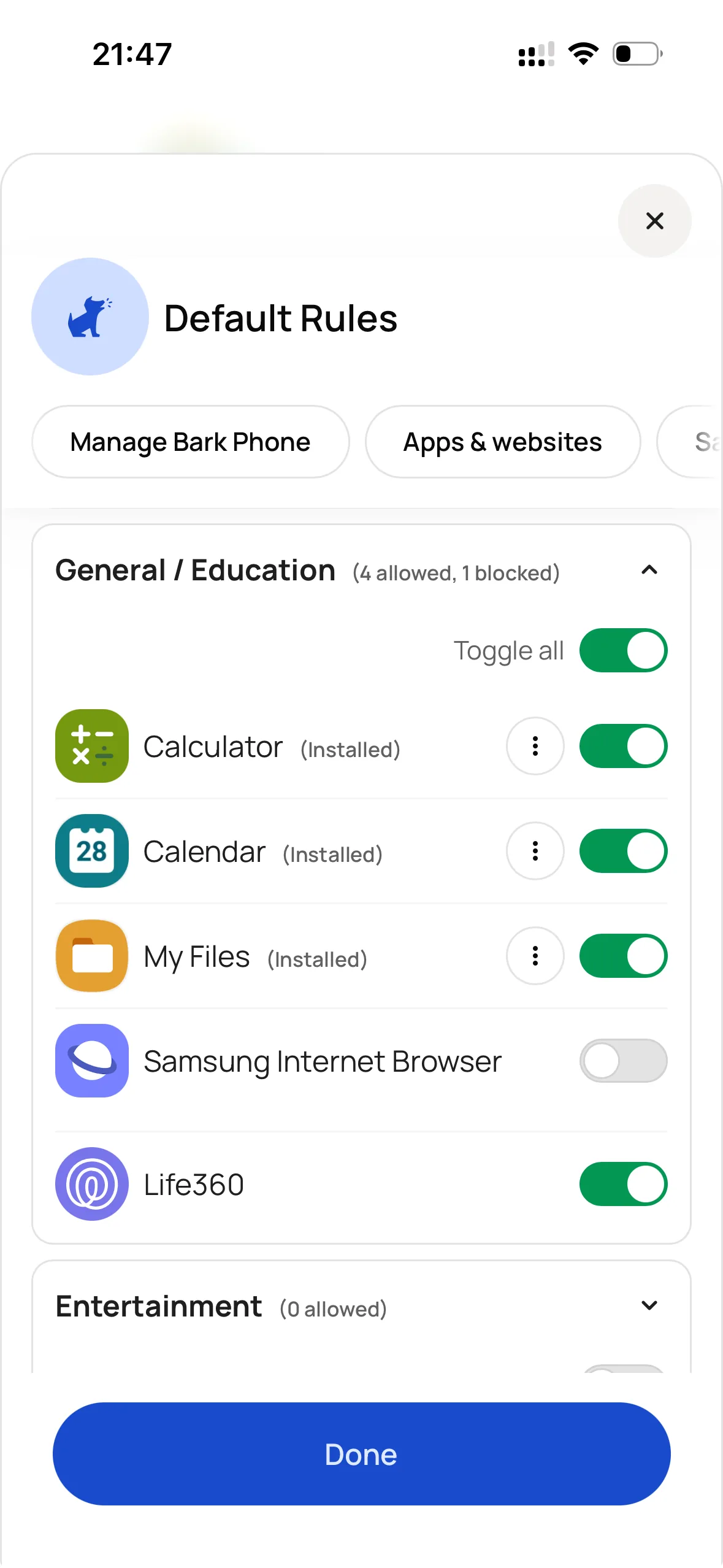
- Scroll down to Apps & websites
- Expand General / Education
- Find Samsung Internet Browser and disable it
1.6 Block Advertising Category
Stops tracking and inappropriate ads
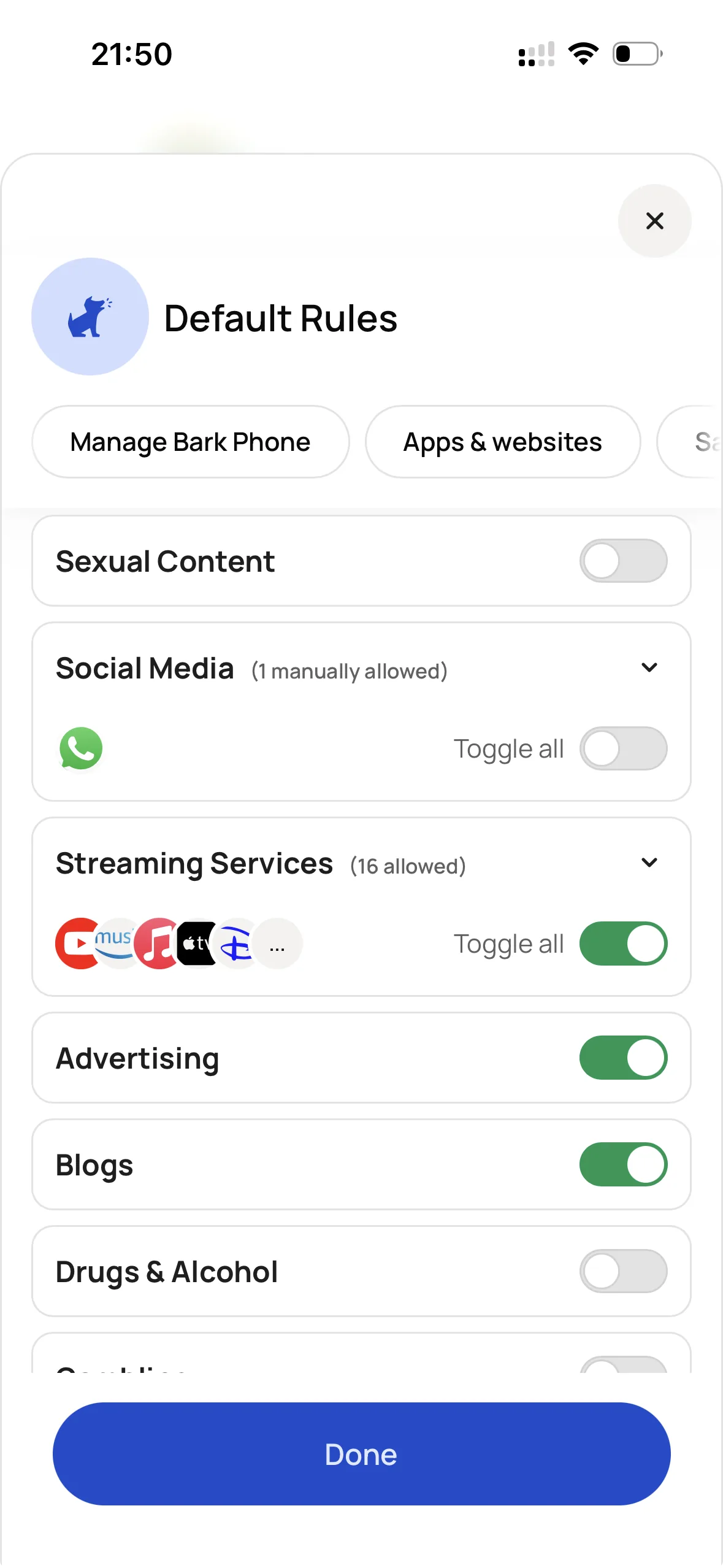
The advertising category is enabled by default in web filtering. This exposes your child to ad tracking networks and inappropriate ad content.
Steps:
- Open Bark Parents App
- Select your child's profile
- Go to Rules (either Default or schedule-specific)
- Scroll down until you find Advertising
- Set to Disabled
Configure Bark Phone
2.1 Remove Privacy Trackers and Bloatware
Before you receive your Bark Phone, the phone ships to Bark from Samsung with pre-installed apps from Meta (Facebook), Microsoft, LinkedIn and others that can track your child's data.
These apps are hidden - they don't appear in your app drawer. You can only find them in Settings > Apps.
Steps:
- On Bark Phone, open Settings
- Tap Apps
- Find each app below and tap it
- Tap Uninstall (or Disable if Uninstall isn't available)
Apps to remove:
- Microsoft 365 Copilot - AI
- Samsung Global Goals
- Samsung Health
- Samsung Find
- Samsung Kids
- Samsung Members
- Samsung News
- Samsung Notes
- Samsung TV Plus
- Samsung Wallet
- Shop Samsung
- Netflix
- Outlook
- Google Photos
- Spotify
- YouTube Music
- Gaming Hub
- Google TV
- Galaxy Wearable
- Avatar Stickers
- Galaxy Avatar
- Secure Folder

2.2 Configure Notifications
Disable distracting app notifications
After initial setup, notification settings should be modified to reduce distractions.
Steps:
- On Bark Phone, open Settings
- Tap Notifications
- Tap App notifications
- Disable notifications for every app except Calendar, Clock, Messages and Phone
- Tap back to the Notifications screen
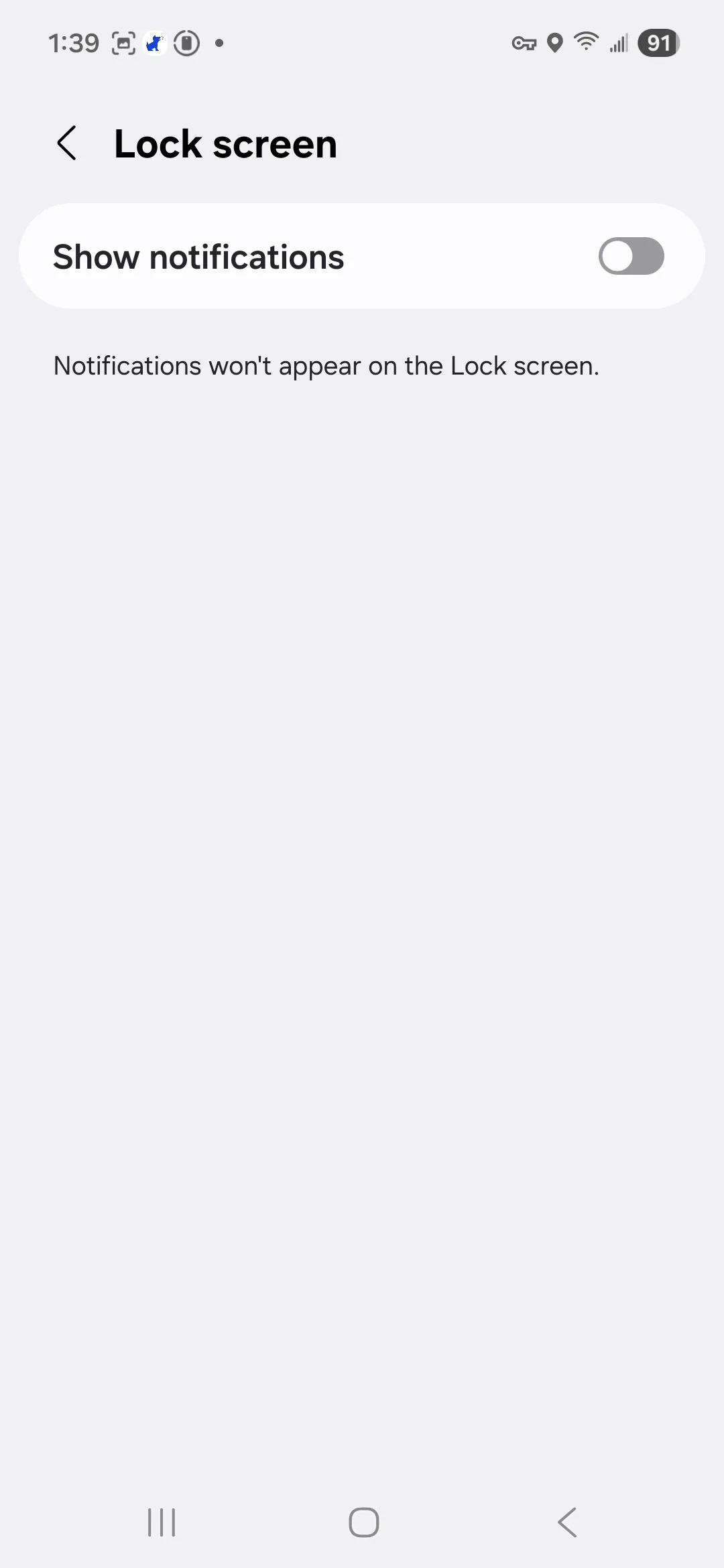
- Tap on Lock screen
- Disable "Show notifications"
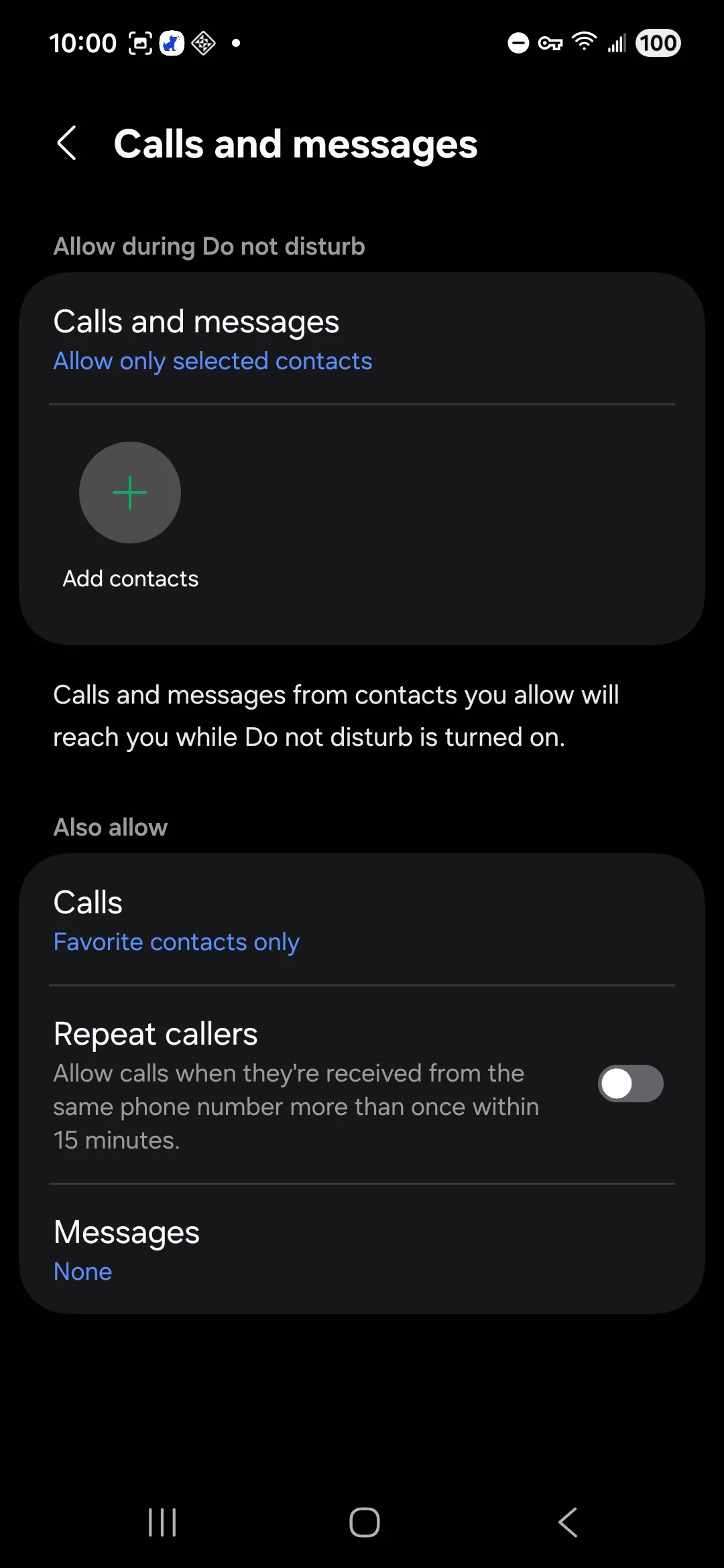
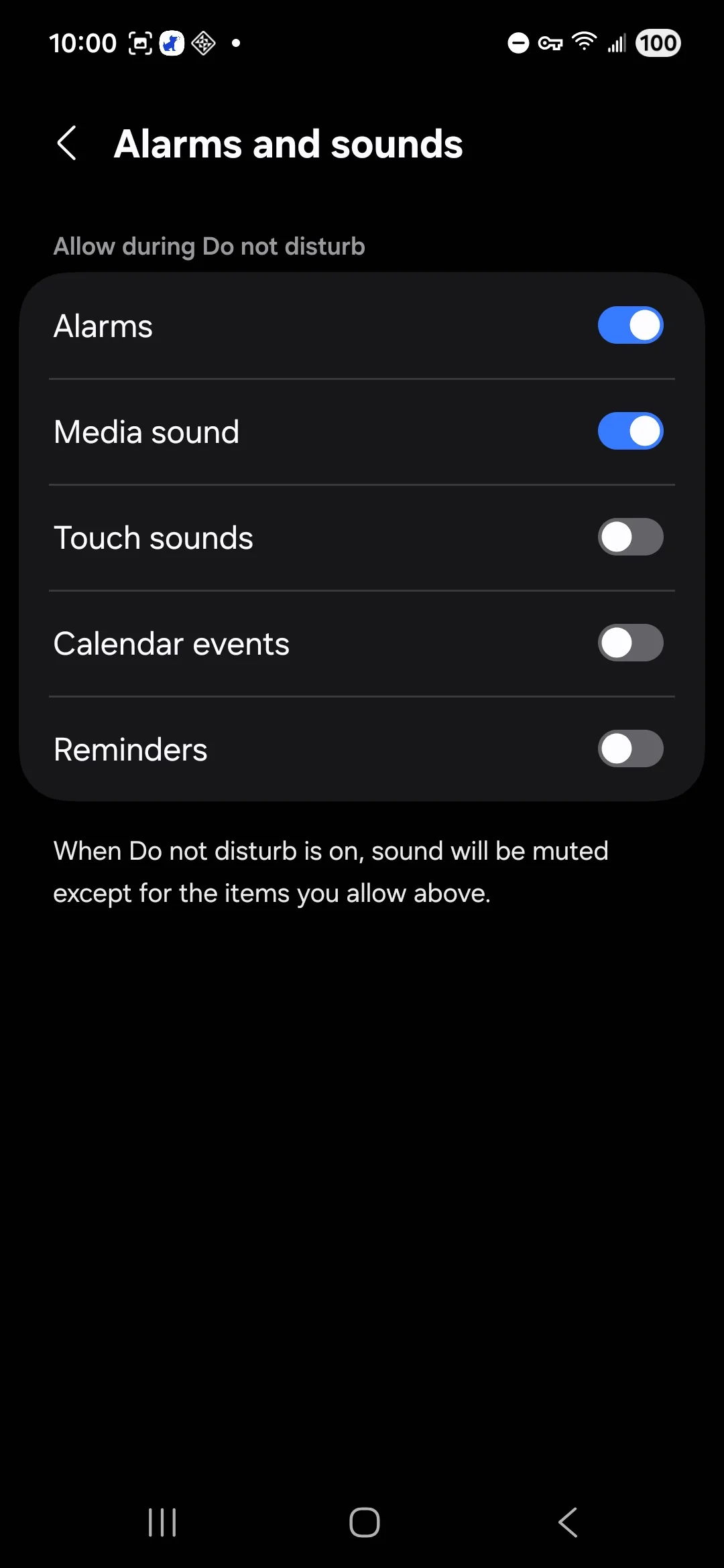
2.3 Set Up Do Not Disturb
Phone never wakes your child, emergency contacts can reach them
Your child should be able to sleep through the night while still being reachable in emergencies.
Enable Do Not Disturb:
- On Bark Phone, tap back to the Notifications settings screen
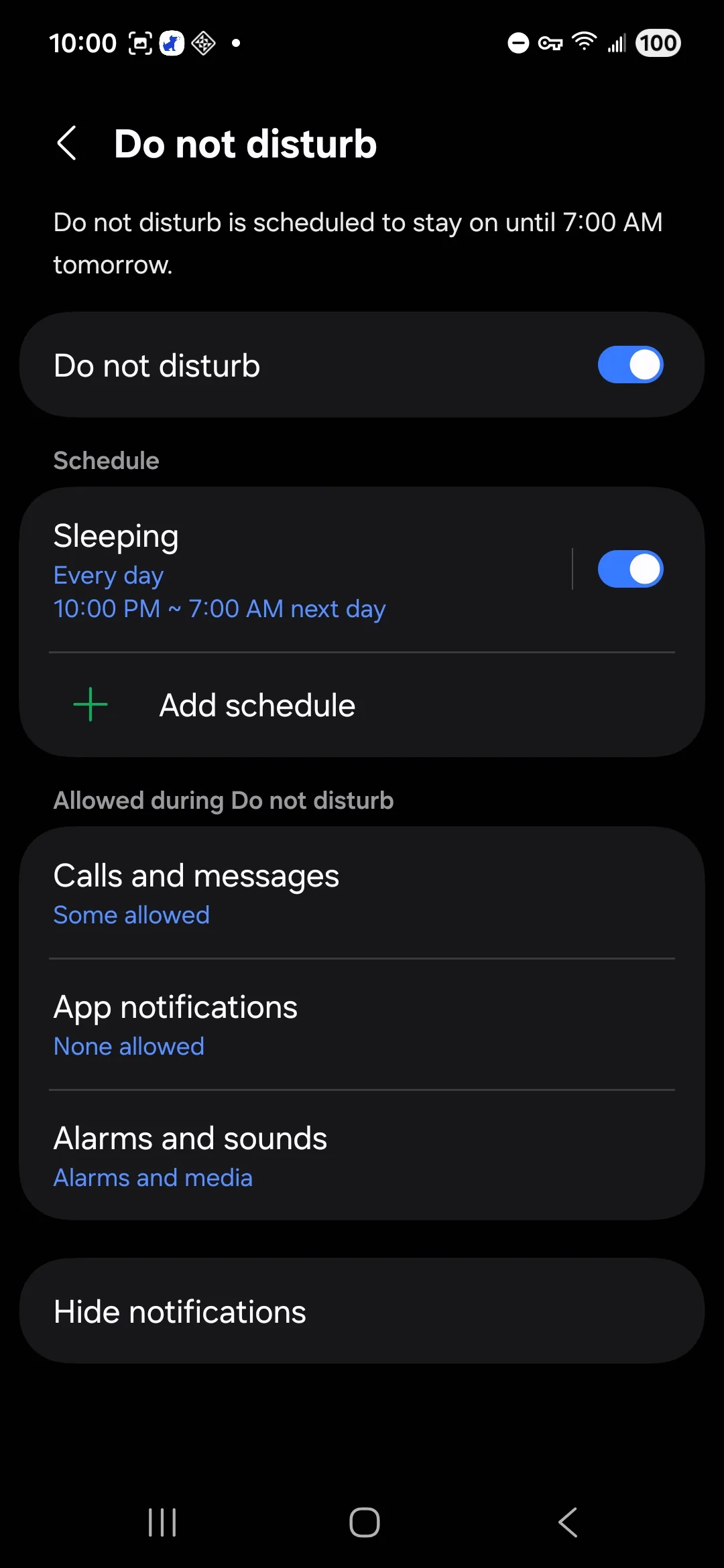
- Tap Do Not Disturb
- Enable Do Not Disturb
- Tap "Add schedule"
- Set Sleep schedule (example: 8pm-7am)
Allow emergency calls only:
- In Do Not Disturb settings, tap "Calls and messages""
- Tap "Calls" and set to "Favorite contacts only"
Mark emergency contacts as Favorites:
- Open Contacts app on Bark Phone
- Find each desired emergency contact (parents, grandparents)
- Open the contact
- Tap the star icon to mark as Favorite
- Repeat for all emergency contacts
2.4 Display Settings
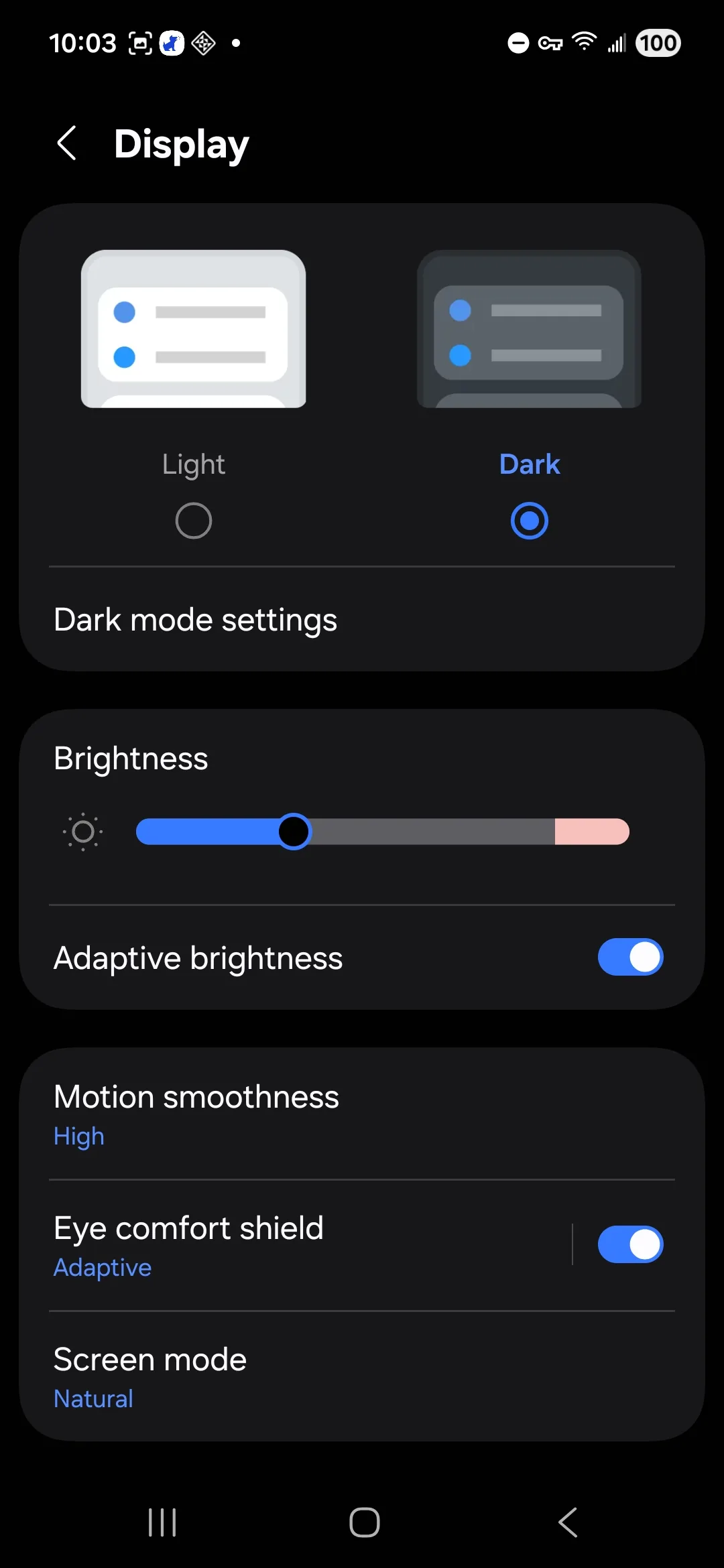
Eye comfort, natural colors, dark mode schedule
Reduces eye strain, improves sleep quality, provides more natural color representation.
Configure Dark Mode:
- In Settings > Display
- Tap "Dark mode settings
- Toggle on "Turn on as scheduled"
- Select Sunset to sunrise
- Tap back to Display settings
Enable Eye Comfort Shield (blue light filter):
- Tap Eye comfort shield
- Enable Eye comfort shield
- Set to "Adaptive"
- Tap back to Display settings
Change screen mode to Natural:
- Tap Screen mode
- Select Natural
Hardware Recommendations
USB-C Charger
The Bark Phone box includes a USB-C cable but no wall charger. You need to purchase one separately.
Recommended: Anker Nano Charger - High quality, small, folding plugs, inexpensive.
Protective Case
The phone will inevitably be dropped. Get a case.
Recommended: Spigen Rugged Armor Case
Pricing
The Bark Phone costs $15/month for 24 months for the device (no upfront cost), plus a service plan:
| Plan | Cost | What You Get |
|---|---|---|
| Starter | $29/mo | Calls, texts, and location tracking. No apps, no browser. The "tool not toy" option. |
| Advanced (Wi-Fi) | $39/mo | Everything above, plus app store and browser - but apps/browser only work on Wi-Fi. |
| Advanced + Data | $49-79/mo | Full smartphone with cellular data for apps/browser anywhere (4GB to unlimited). |
All plans include Bark Premium for your entire family.
Bottom line: Calls, texts, and location tracking work everywhere on all plans. The $29/mo Starter is all you need for a Bark Phone that's just a phone. Add $39/mo if your child needs apps or a browser on Wi-Fi. Add $49/mo+ if they need internet away from home.
Bark occasionally runs promotions, so check their website for current pricing.
Related Resources
From Family IT Guy
Technology Framework - Read my complete guide on how to choose technology for your child →
Official Bark Resources
Bark Support Center - https://support.bark.us
Bark Community - Connect with other Bark parents